Annotations-only Workflow
The Annotations-only Workflow records timestamped text notes only — no stimulation parameters and no clinical or session scale values. Each note is appended to its own annotations TSV file as you work; there is no merge step and this workflow does not combine multiple files into one.
Use it for in-clinic observations, ward notes, or any visit where you need a lightweight timestamped log without running the full programming workflow.
Opening the Annotations-only Workflow
From the home screen click Annotations-only Workflow.
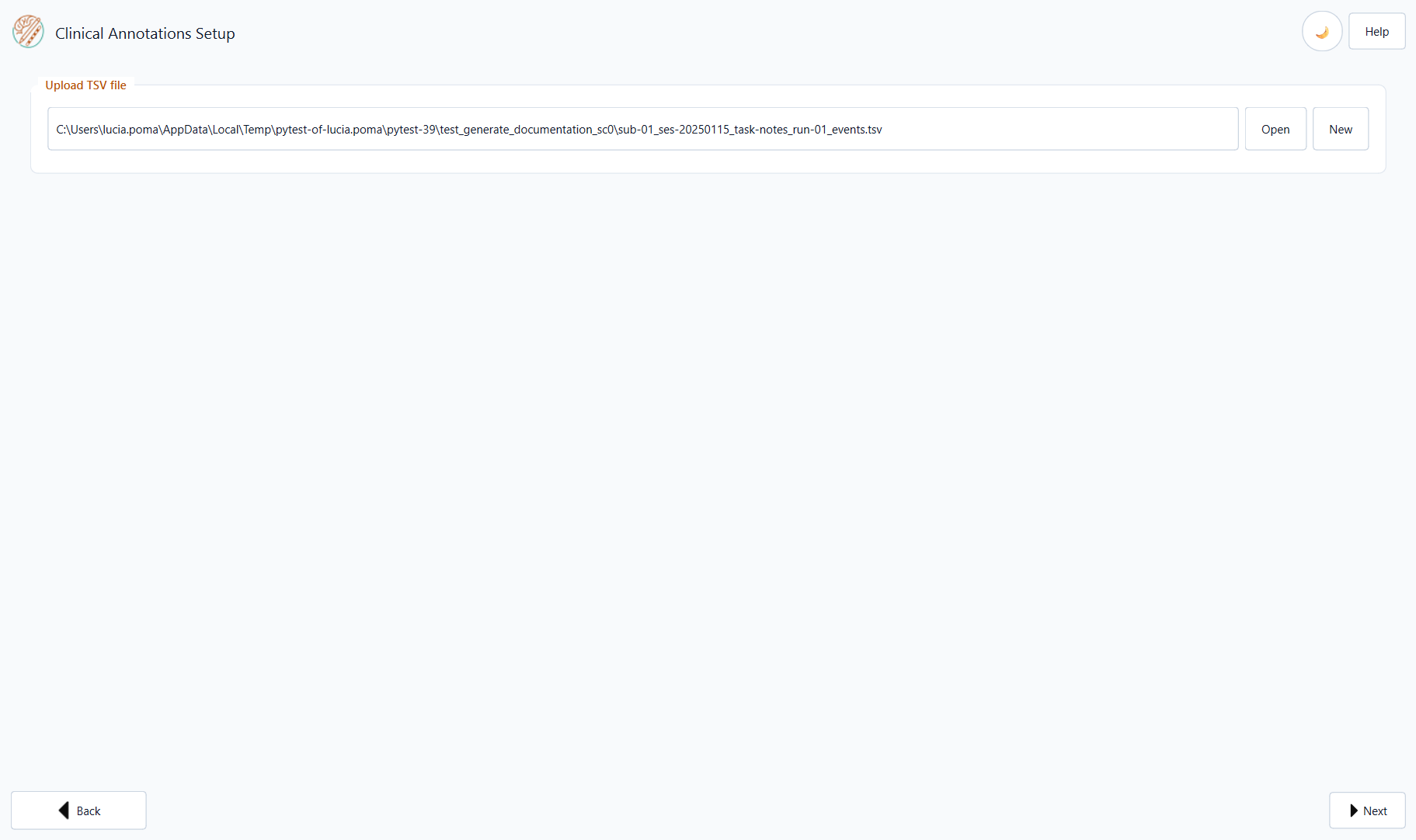
On Clinical Annotations Setup, choose or create the TSV file:
Open — load an existing
*_task-notes_*_events.tsvfile.New — enter Patient ID and Run ID in the dialog; Session ID is set automatically to today’s date (
ses-YYYYMMDD). Pick the save location in the file dialog.Drag and drop a
.tsvonto the path field.
Click Next to open the recording screen.
Recording an Annotation
Type your note in the Session Annotations text area.
Click Insert to record an entry.
The entry is immediately appended to the list below with:
Timestamp — current date and time (Eastern Time, aligned with Medtronic Percept logs).
Note text — exactly as you typed it.
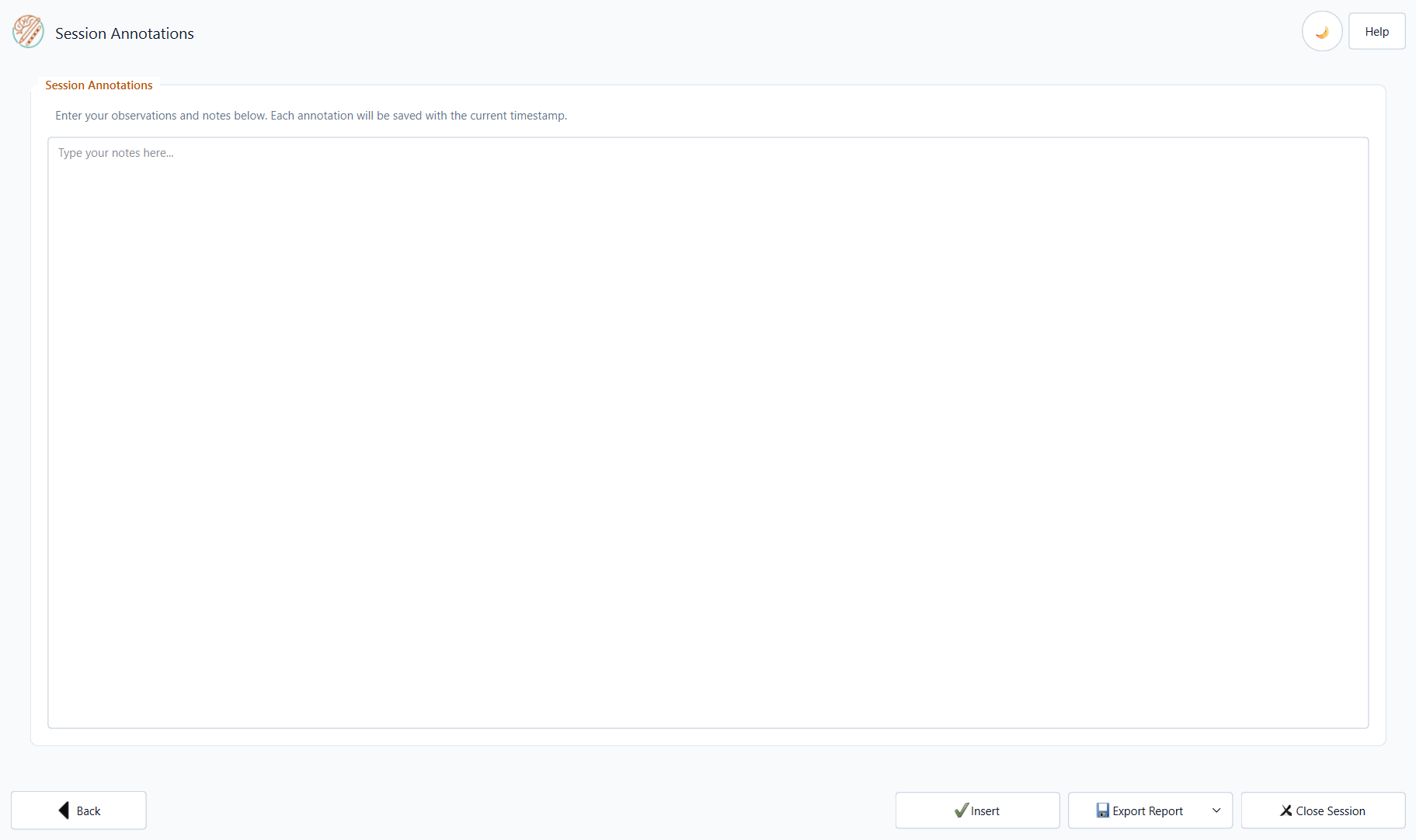
Entries are saved to the TSV file in real-time; no manual save is needed.
Output File
Annotations use a dedicated tab-separated format — not the programming-session
schema (no block_ID, stimulation columns, or scale columns). The BIDS-style
filename is:
sub-<ID>_ses-<YYYYMMDD>_task-notes_run-<NN>_events.tsv
Each row is one annotation. Columns (see also Output Format):
Column |
Content |
|---|---|
|
Date of the annotation ( |
|
Time of the annotation ( |
|
Timezone abbreviation/offset at capture time |
|
The note text (same column name as in the Complete Workflow TSV) |
Exporting a Report
Click Export Report → Word Report or PDF Report to generate a simple document containing the full annotation log.
The report shows:
Patient ID and session information (from the filename).
A table with all annotations sorted by timestamp.
Closing
Click Close Session when finished. The file is automatically saved and the application returns to the home screen.