Quick Start
This page walks you through opening the application for the first time and choosing the right workflow for your needs.
Launching the Application
After Installation, open DBS Annotator from your system’s
application launcher (the installed app, not a loose .exe in a download
folder):
Windows — Start menu entry DBS Annotator (from the
.msiinstaller or the PowerShell install script shortcut).macOS — Applications after installing from the
.dmgor install script.Linux — application menu after installing the
.debor install script.
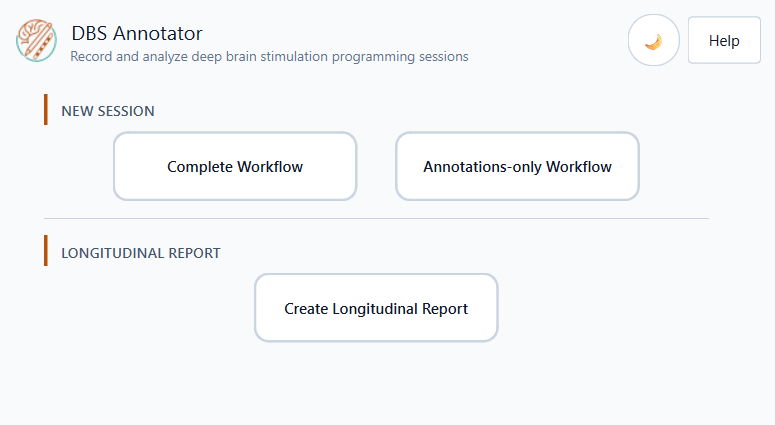
The main window opens on the Home screen.
Choosing Your Workflow
From the home screen you can start one of three workflows:
Button |
When to use it |
|---|---|
Complete Workflow |
You are about to perform a DBS programming session and want to record stimulation parameters, clinical scales, and notes in real-time. |
Annotations-only Workflow |
You only need timestamped text notes — no stimulation parameters or clinical scale values. |
Create Longitudinal Report |
You already have multiple programming-session TSV files from the same
subject (BIDS example:
|
Interface Overview
The application window contains three persistent elements:
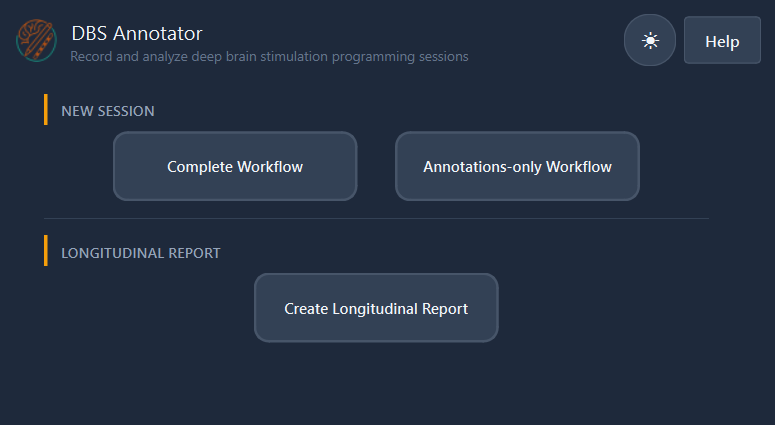
Top bar — application title, current file name, and the Dark / Light theme toggle (☀ / ☾ icon).
Main area — changes with each step of the workflow.
Bottom navigation — Back and Next / action buttons.
Theme Toggle
Click the ☀ / ☾ button in the top-right corner at any time to switch between the light and dark colour scheme. Your preference is applied immediately and maintained between pages.
Next Steps
Complete Workflow — Complete Workflow
Annotations-only Workflow — Annotations-only Workflow
Longitudinal Report — Create Longitudinal Report